Bank Transactions Report
The Bank Transactions Report under Reports provides administrators with a centralized view of all bank wallet transactions processed through PerksPe. It enables HR and finance teams to monitor debits, verify transaction status, audit payment history, apply advanced filters, and export transaction records for reconciliation and financial reporting.
The Bank Transactions Report displays every bank transaction processed within PerksPe. Administrators can quickly review transaction details, monitor successful and failed payments, identify transaction types, and verify payment timestamps.
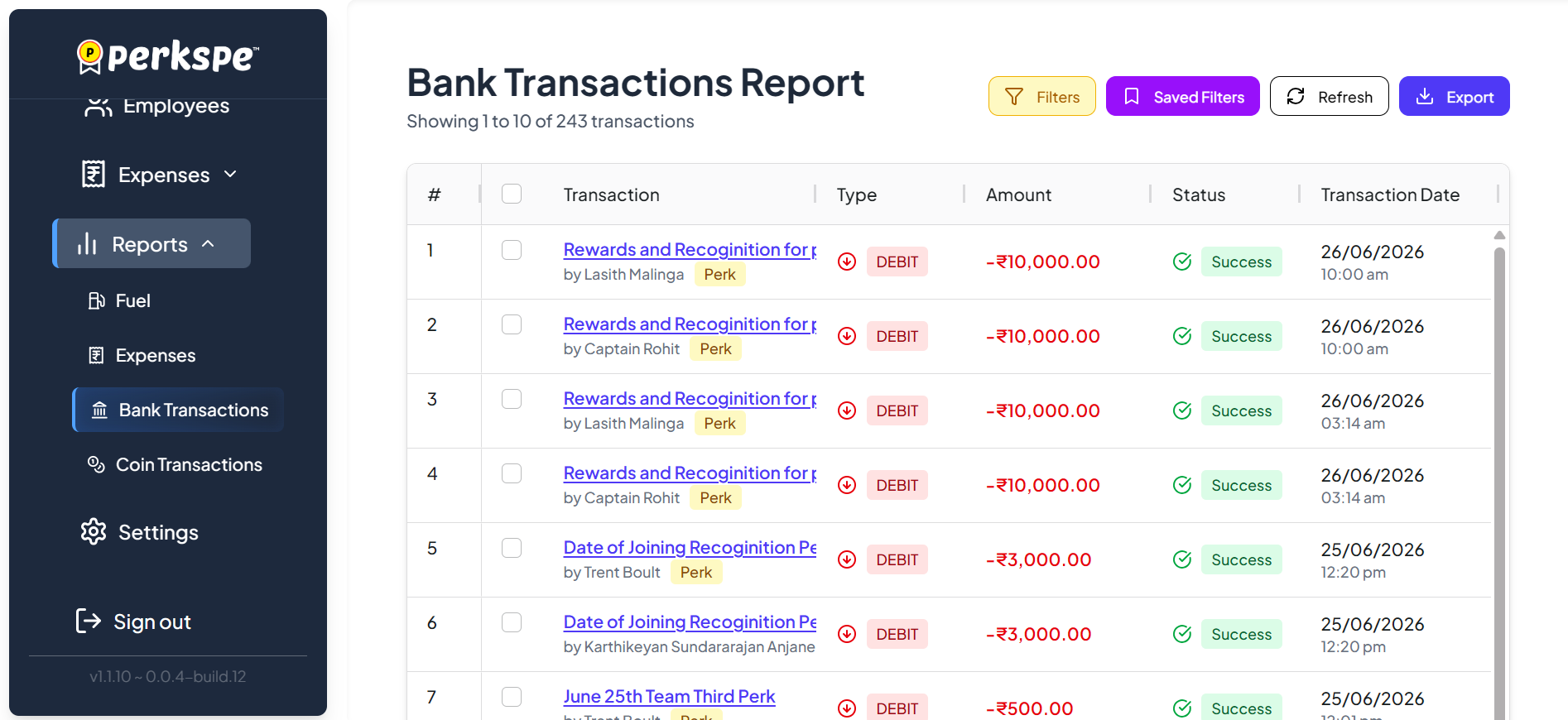
Table Columns Breakdown
- # : Sequential number assigned to each transaction.
- Checkbox: Select one or multiple transactions for bulk export.
- Transaction: Displays the transaction title along with the employee who initiated or received the transaction. A category badge (such as Perk) is also shown.
- Type: Indicates whether the transaction is a Debit or Credit.
- Amount: Displays the transaction value.
- Status: Shows the processing status (for example, Success, Pending, or Failed).
- Transaction Date: Displays the exact date and time when the transaction was processed.
Use the controls located at the top-right of the report to search, refresh, filter, save filters, and export transaction data.
Filters
Filter transactions using available criteria such as transaction type, status, employee, category, or date range.
Saved Filters
Store frequently used filter combinations for quick access.
Refresh
Reload the report to fetch the latest bank transaction records.
Export
Download the currently displayed transaction data as a spreadsheet for auditing and reconciliation.
If only specific transactions are required, you can export the selected records instead of the entire report.
Use Saved Filters for frequently reviewed transaction reports such as monthly payroll disbursements, reward payouts, reimbursement transactions, or failed bank transfers. This helps finance teams quickly retrieve commonly used reports without recreating filter criteria every time.